Tuesday, September 27, 2016

Week 3- MKTG 349- AdWords Fundamentals Exam: Attempt #1

After studying the content needed to pass the Google AdWords exam, I got a 67% out of a possible 100%. An 80% is needed to pass for the AdWords certification. 

I wish I could go back and review the questions that I missed because it seemed some of the questions had more than one right answer. I plan on going back to review the materials provided through the Google Partners website. Hopefully next time I take the exam I will get a passing grade. We'll just have to wait another week to find out!


Tuesday, September 13, 2016

Week 2- MKTG 349- AdWords Campaign


In order to create an AdWords Campaign, you first must go to the AdWords website and sign in under your Google gmail account. Once logged in, you are able to view all information under any past Campaigns created. At this time, we don't have any. So lets make one! By clicking on the Campaigns tab towards the top of your screen, you have a variety of Campaign types to select from. Since we are beginners here, we'll keep it easy and choose the "Search Network Only" option including all features.

Considering how to utilize your budget and timeline are the most important parts of your campaign. In our case, it's a good idea to set up a small budget with a low amount paid per day (lets stick with $5). Also, setting up a one or two day timeline would keep you from forgetting to turn the campaign off so you don't end up spending a fortune!

Next, you are able to create your URL, headlines, and description. AdWords even lets you preview how the ad will look on a consumers desktop and mobile device. Creating certain keywords related to your ad will improve your chances of consumers clicking on it. In addition, AdWords provides an "Estimate search traffic" button for every keyword you try. So go ahead. Take a chance and try out how successful your first AdWords Campaign could be! 

Tuesday, September 6, 2016

Week 1- MKTG 349- Google AdWords Introduction

AdWords is a key tool used to create ads. It's effective because it keeps track of your return on investment, or also known as ROI. Google keeps track of the key words used in the search bar of their search engine so the most relevant ads will display on your screen.

You can become AdWords certified by creating a Google Partners account. The wonderful perk about it is that it's completely free too! I was able to quickly create an account hooked up through my Gmail. Once logged in, you can navigate by using the menu bar on the left-hand side on your screen. By clicking on the AdWords tab under Certifications, you can see what the exam entails.


In order to get the AdWords Certification, you only need to take the core AdWords Fundamentals exam and the Search Advertising exam (despite the four other options listed with Search Advertising).


Both exams take roughly two hours each to answer 100 questions. An 80% is needed for a passing score, and you can take it as many times as you need. If you hover your mouse over the exams, details about them appear and you are able to click on a link that is labeled "Exam Details." Once there, you are able to either take the exam or study the core materials.


I never knew Google Partners ever existed or that they offered this type of accreditation's for free before. AdWords is said to be well known and a great certification to add to any resume. It also has the ability to impress employers when you're on the job hunt. I haven't studied the material or have taken the AdWords test just yet, but I plan on trying it out very soon. Who knows, maybe I can get a perfect score after a few tries!

Tuesday, December 8, 2015

Adding Projects to LinkedIn

In order to showcase my social media blog and Bailey's Facebook campaign, I am able to include them in my Projects section of my profile. Here is how to do it.

Under your LinkedIn home page, go to Edit Profile and scroll down until you reach Projects.


Once there, you are able to add the project name, months in process, your occupation used to execute the project, it's URL link, and a brief description.


After you are done, click Save.


You are now ready to show the employers any projects you'd like to showcase!


Thursday, December 3, 2015

LinkedIn URL

This week in class, the students were to change their LinkedIn profiles URL. By doing this, it will enhance your personal brand.

To change your LinkedIn URL, you must log into your profile and click on the edit profile tab. Once there, you will see your profiles website name. Scrolling over it will reveal a settings key. By clicking on that, it will take you to another editing page for your profile.


On the top right corner will be an option to change your public profile URL. Clicking on the pencil tab, you are able to type in a new name.


Final Project Rough Draft

This week, our professor wanted the students to create a rough draft Powerpoint for our Facebook Ad Campaign. In this Powerpoint, I explained my Project Proposal, Facebook Advertisement, Results, Demographics, and a Conclusion slide.

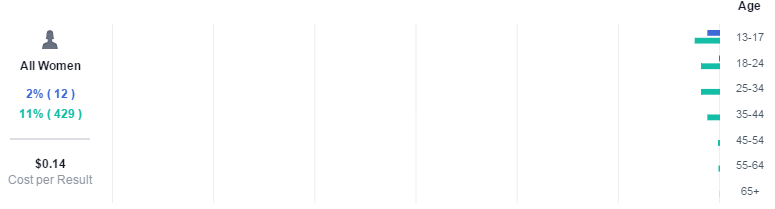
In the Project Proposal, I explained through bullet points that Bailey is a 10 year old Shiba Inu and that I would expose her through social media. I revealed the dates it ran, as well as the 3 phases. Phase 1: Create a Facebook Ad Campaign. Phase 2: Put Advertisement into motion. Phase 3: Review results of campaign. The last bullet point included the $20 budget. On the Facebook Advertisement slide, I posted the screenshot of the audience definition. In bullet points I listed the Target Market, Potential Reach, the Budget (once again), as well as the start date. The Results slide only showed People reached and Cost per click along with screenshots. On the Demographics slide, I applied screenshots of the ages of all men and women. Women cost $0.14 per click while men cost only $0.03 per click. I commented on how 80% of the likes were from young teenage males, which surprised me. The last slide is the Conclusion. Here I mentioned what my original goals were before I ran the campaign and how the results exceeded my goals.


Tuesday, November 24, 2015

Facebook Ad Campaign for Social Media Marketing Project

Our class was to make a Facebook campaign for our final presentation. I decided to create a campaign on gaining page likes for my dog Bailey.
       
Earlier in the course, we were required to make a Facebook page just to get an idea of how to do it. I made one for my dog. When this project came about I thought to myself, "Well, she's a real pet and her page is already set up. So I guess I can advertise her and see what kind of people would be interested in clicking on her." We weren't required to actually put money into the campaign, but it was recommended. I put $20 towards a 3 day campaign (11/18-11/20) to gain likes for Bailey's page. I assumed she would have reached about 6,000 people, accumulated 80 clicks, and accumulated at lease 20 likes.

Here are the results:
Results on graph


Ages of audience 
Ad placement
I was presently surprised on many likes Bailey's page got. She accumulated 739 new page likes and reach a little over 7,000 people! That was much greater than what I projected before the campaign ran. I found it interesting that 80% of the total likes gained were from males between the ages of 13-17. I'd expected to attract mostly females and a little bit of an older age group. Either way, I'd say the campaign was pretty successful.